A collection of Useful Applescripts to make MacOS life better.
About
Some of these specifically integrate with other software and others manipulate the OS.
These are mostly created by cobbling together bits and pieces from other scripts and finding the thing that works best for my use case.
Lots of these are quite simple but maybe they will solve a problem for someone else.
Directory
BarTender
DisplaysLaptopOnly.scpt determines if the monitor connected is a laptop display. This allows Bartender to know if a smaller display is detected. This interacts with Bartender’s new profile feature.
DisplaysNotLaptop.scpt very similar to DisplaysLaptopOnly.scpt but it determines if a monitor that is not the laptop is conected. Similarly, works with Bartender Profiles.
Bunch
I use QuitXcodeBunch with Bunch.app, from the excellent @ttscoff, to close Xcode when leaving my Code bunch. It makes sure to stop any running tasks so that Xcode quits properly.
GetKMVar is a simple script to get the variable from inside Keyboard Maestro and make it available to an applescript. It works in conjunction with other scripts as more of a building block.
Email
EmailHi.scpt is heavily inspired by David Sparks’ blog and was influenced heavily by various posts I read on the Automators forums and the Mac Power Users Forums.
My version of the script includes both MS Outlook and Mail.app variations as I work in both pieces of software and wanted the ability to get first names in both applications. I trigger it with Keyboard Maestro text entry because I try to keep all the applescript triggers there. But you could also use text expander…
URLs
SafariToFirefox.scpt opens the frontmost safari tab in Firefox. Personally I trigger this with Keyboard Maestro using a string trigger.
SafariToDuckDuckGo.scpt opens the frontmost Safari tab in DuckDuckGo. Again I trigger with Keyboard Maestro. You could modify this for any app you fancy. The main difference with the Firefox script is that duck duck go has fewer weird tab opening problems. Hense there is a delay built into the firefox script.
URLsToProfile.scpt uses Keyboard Maestro to open specified URLs in the Safari profile of your choosing.
Thanks
I’m not really amazing at any of this coding business, and I have only been able to work out these automations because of the excellent communities and software that others have made. I hope you find these useful.
This repository is a getting-started/ready-to-use kit for deploying your own automl model with AutoGluon MxNet on SageMaker. With SageMaker, you can have
a real-time inference endpoint or run batch predictions with batch transforms.
Getting started
Host the docker image on AWS ECR
You can train your model locally or on SageMaker. Your model is automatically saved to the SageMaker model directory and, packaged and uploaded to S3 by SageMaker.
Required packages are already included in the requirements.txt. We also defined the installation of some packages in the Dockerfile.
To get your model working make the necessary code changes in the transformation function in the file /model/predictor.py.
Run /build_and_push.sh <image_name to deploy the docker image to AWS Elastic Container Registry
Deploy your model in SageMaker
I have included an example notebook which includes how to train locally and on a SageMaker ML instance.
importboto3importsagemakerassagefromsagemakerimportget_execution_rolefromsagemaker.predictorimportcsv_serializerimage_tag='autogluon-image-classification'# use the <image_name> defined earliersess=sage.Session()
role=get_execution_role()
account=sess.boto_session.client('sts').get_caller_identity()['Account']
region=sess.boto_session.region_nameimage=f'{account}.dkr.ecr.{region}.amazonaws.com/{image_tag}:latest'training_data='s3://autogluon/datasets/shopee-iet/data/train'test_data='s3://autogluon/datasets/shopee-iet/data/test'artifacts='s3://<your-bucket>/artifacts'sm_model=sage.estimator.Estimator(
image,
role,
1,
'ml.p2.xlarge', output_path=artifacts, sagemaker_session=sess
)
# Run the train program because it is expectedsm_model.fit(
{'training': training_data, 'testing': test_data}
)
# Deploy the model.predictor=sm_model.deploy(1, 'ml.m4.xlarge', serializer=csv_serializer)
More information
SageMaker supports two execution modes: training where the algorithm uses input data to train a new model (we will not use this) and serving where the algorithm accepts HTTP requests and uses the previously trained model to do an inference.
In order to build a production grade inference server into the container, we use the following stack to make the implementer’s job simple:
[nginx][nginx] is a light-weight layer that handles the incoming HTTP requests and manages the I/O in and out of the container efficiently.
[gunicorn][gunicorn] is a WSGI pre-forking worker server that runs multiple copies of your application and load balances between them.
[flask][flask] is a simple web framework used in the inference app that you write. It lets you respond to call on the /ping and /invocations endpoints without having to write much code.
The Structure of the Sample Code
The components are as follows:
Dockerfile: The Dockerfile describes how the image is built and what it contains. It is a recipe for your container and gives you tremendous flexibility to construct almost any execution environment you can imagine. Here. we use the Dockerfile to describe a pretty standard python science stack and the simple scripts that we’re going to add to it. See the [Dockerfile reference][dockerfile] for what’s possible here.
build_and_push.sh: The script to build the Docker image (using the Dockerfile above) and push it to the [Amazon EC2 Container Registry (ECR)][ecr] so that it can be deployed to SageMaker. Specify the name of the image as the argument to this script. The script will generate a full name for the repository in your account and your configured AWS region. If this ECR repository doesn’t exist, the script will create it.
model: The directory that contains the application to run in the container. See the next session for details about each of the files.
docker-test: A directory containing scripts and a setup for running a simple training and inference jobs locally so that you can test that everything is set up correctly. See below for details.
The application run inside the container
When SageMaker starts a container, it will invoke the container with an argument of either train or serve. We have set this container up so that the argument in treated as the command that the container executes. When training, it will run the train program included and, when serving, it will run the serve program.
train: We will only copy the model to /opt/ml/model.pkl so SageMaker will create an artifact.
serve: The wrapper that starts the inference server. In most cases, you can use this file as-is.
wsgi.py: The start up shell for the individual server workers. This only needs to be changed if you changed where predictor.py is located or is named.
predictor.py: The algorithm-specific inference server. This is the file that you modify with your own algorithm’s code.
nginx.conf: The configuration for the nginx master server that manages the multiple workers.
Setup for local testing
The subdirectory local-test contains scripts and sample data for testing the built container image on the local machine. When building your own algorithm, you’ll want to modify it appropriately.
train-local.sh: Instantiate the container configured for training.
serve-local.sh: Instantiate the container configured for serving.
predict.sh: Run predictions against a locally instantiated server.
test-dir: The directory that gets mounted into the container with test data mounted in all the places that match the container schema.
payload.csv: Sample data for used by predict.sh for testing the server.
The directory tree mounted into the container
The tree under test-dir is mounted into the container and mimics the directory structure that SageMaker would create for the running container during training or hosting.
input/config/hyperparameters.json: The hyperparameters for the training job.
input/data/training/leaf_train.csv: The training data.
model: The directory where the algorithm writes the model file.
output: The directory where the algorithm can write its success or failure file.
Environment variables
When you create an inference server, you can control some of Gunicorn’s options via environment variables. These
can be supplied as part of the CreateModel API call.
Parameter                Environment Variable              Default Value
---------                --------------------              -------------
number of workers        MODEL_SERVER_WORKERS              the number of CPU cores
timeout                  MODEL_SERVER_TIMEOUT              60 seconds
Note PathToList has been renamed to just ToList it seemed redudant, sorry for breaking change.
varquerySelect=query.Select(t =>{t.NullChecking(true);// not obligated but usefull for in memory queries. t.ToList("Posts.Comments.CommentLikes",selectCollectionHandling:SelectCollectionHandling.Flatten);t.Path("FirstName");t.Path("LastName","ChangePropertyNameOfLastName");});
In Support
You can filter with a list, this will generate a contains with your list.
You don’t have to Worry about it.
The library will do it for you.
varquery=authors.AsQueryable();query=query.Query(qb =>{qb.NullChecking();// you can specify here which collection handling you wish to use Any and All is supported for now.qb.And("Posts.Comments.Email",ConditionOperators.Equal,"john.doe@me.com",collectionHandling:QueryCollectionHandling.Any);});
Null Checking is automatic (practical for in memory dynamic queries)
The NYC-TLC-AIRFLOW-ETL repository is a comprehensive solution built with Apache Airflow DAG Running in Docker to extract High-Volume For-Hire Services parquet files from the year 2022, provided by the New York City Taxi and Limousine Commission (TLC), stored in an AWS bucket. The pipeline performs data transformation operations to cleanse and enrich the data before loading it into a Google BigQuery table. The purpose of this ETL pipeline is to prepare the data for consumption by a Looker Studio report, enabling detailed analysis and visualization of the trips by Uber and Lyft.
The DAG is manually triggered or via the API. However, we can easily modify the workflow to run on a defined schedule, like running after the AWS bucket gets the latest High Volume FHV trip parquet file.
Features
Extraction of High-Volume FHV parquet files from the year 2022.
Data transformation and cleansing operations.
Loading of the transformed data into a Google BigQuery table.
Manual triggering of the DAG or API-based triggering.
Configurable scheduling to run the pipeline after the AWS bucket receives the latest High Volume FHV trip parquet file.
Prerequisites
Docker installed on your local machine.
Google BigQuery project and credentials.
AWS S3 bucket credentials.
Setup
Configure the AWS S3 bucket connection
In order to access the High-Volume FHV parquet files stored in the AWS S3 bucket, you need to configure the AWS S3 bucket connection in Apache Airflow. Follow the steps below:
Open the Airflow web interface.
Go to Admin > Connections.
Click on Create to create a new connection.
Set the Conn Id field to s3_conn.
Set the Connection Type to Amazon Web Services.
Fill in the AWS Access Key ID.
Fill in the AWS Secret Access Key.
To load the transformed data into a Google BigQuery table, you must to place the GOOGLE_APPLICATION_CREDENTIALS .json file in the “dags/” folder.
The ETL pipeline requires an Airflow variable called HV_FHV_TABLE_ID, which is the ID of the BigQuery table where the transformed data will be loaded. Follow the steps below to set the variable:
Open the Airflow web interface.
Go to Admin > Variables.
Click on Create to create a new variable.
Set the Key field to HV_FHV_TABLE_ID.
Fill in the Value field with the ID of your BigQuery table.
cd src
# copy everything (.) in to remote (:)
mpremote cp -r .:# run main.py to see stdout
mpremote run main.py
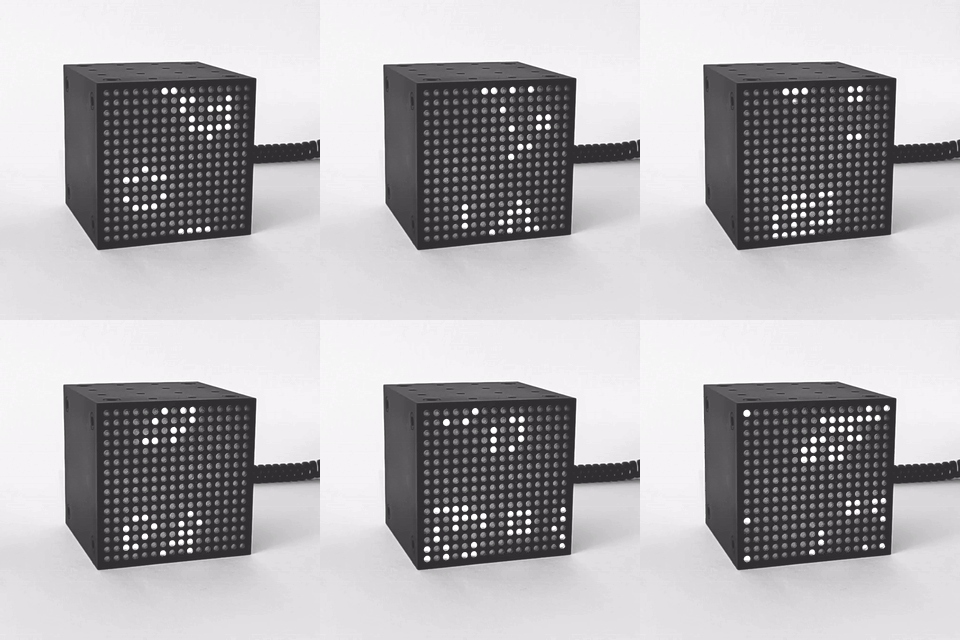
Ikea FREKVENS HW Modification
One need to disassembly Ikea FREKVENS box, remove original MCU board and connect RPi Pico. Steps:
Disassembly, there are some tutorials already, e.g. here or here
Remove original MCU (green) PCB and solder connector in place (or directly connect according to the following table via wires).
(optional) disassembly power supply block and replace AC output plug with 3D printed USB connector holder. USB data pins are available on back side of RPi Pico as test points.
Connection
Board
Pin/Wire
RPi Pico PIN
Note
LED PCB
1 (Vcc)
VSYS
LED PCB
2
GPIO 4
En
LED PCB
3
GPIO 3
Data
LED PCB
4
GPIO 2
Clk
LED PCB
5
GPIO 5
Latch
LED PCB
6 (Gnd)
GND
Buttons
Red wire
GND
Buttons
Black wire
GPIO 10
Yellow button
Buttons
White wire
GPIO 11
Red button
Connection between power supply and main PCB (4V and GND) is same.
‼ If USB connection is used, one must de-solder diode that are between VUSB and VSYS from Pico PCB. (here’s why)
Ideas for improvements
Add predefined startup (e.g. glider)
Performance improvement (use SPI or PIO for communication, speed up game generation computation)
Todos los recursos necesarios para instalar Neovim estaran aquí, sin necesidad de abrir otras páginas.
Los Plugins y temas más conocidos igualmente se encontrarán en este repositorio.
Instalar Vim/Neovim
Recursos
Git
Node.js
Chocolatey
Windows 7 o posteriores / Windows Server 2003+
PowerShell v2+ (el mínimo es v3 para instalar desde este sitio web debido al requisito de TLS 1.2)
.NET Framework 4 o posteriores (la instalación intentará instalar .NET 4.0 si no lo tiene instalado) (el mínimo es 4.5 para instalar desde este sitio web debido al requisito de TLS 1.2)
Una vez instalado los recursos continuaremos a instalar el editor de código.
Abrimos Windows PowerShell y ejecutamos el siguiente código:
choco install neovim
Para instalar la versión pre-release:
choco install neovim --pre
Configurar Neovim
Verificar el archivo init.vim
Diríjase a C:\Users\YourUser\AppData\Local, ahí debe haber una carpeta nombrada “nvim”, aparte de “nvim-data”, si no está creela y dentro de dicha carpeta cree el archivo init.vim y abrelo con un editor de texto, copie y pegue el siguiente código:
Instalar vim-plug
En Windows PowerShell (Administrador), ejecute el siguiente código y se instalará instantáneamente:
iwr -useb https://raw.githubusercontent.com/junegunn/vim-plug/master/plug.vim |`
    ni "$(@($env:XDG_DATA_HOME, $env:LOCALAPPDATA)[$null -eq $env:XDG_DATA_HOME])/nvim-data/site/autoload/plug.vim" -Force
Primer inicio de Neovim
Abrimos el Windows Terminal y debemos abrir el archivo “init.vim” y para aplicar todos los plugins preinstalados en dicho archivo.
Diríjase a la siguiente dirección: C:\Users\YourUser\AppData\Local\nvim.
Ejecute el siguiente código para abrir el archivo con neovim:
nvim init.vim
Donde “nvim”, se usa para abrir el editor de código en sí y “init.vim”, en este caso de ejemplo, se usa para abrir el archivo o carpeta.
Aplicar la instalación de Plugins
Una vez dentro de neovim damos Enter, y nos aparecerá el código del archivo init.vim.
Luego tipeamos : , y automáticamente nos mandará a la linea de abajo y escribimos el siguiente comando: PlugInstall y damos Enter.
Y los plugins deben instalarse automaticamente.
Reiniciamos neovim de la siguiente manera:
Tipeamos : y q
Luego tipeamos : y wq para aplicar los cambios.
Volveremos al Windows Terminal y volveremos a ejecutar el comando:
nvim init.vim
Y ya veremos los cambios aplicados y a Neovim con una nueva apariencia.